
Applicants
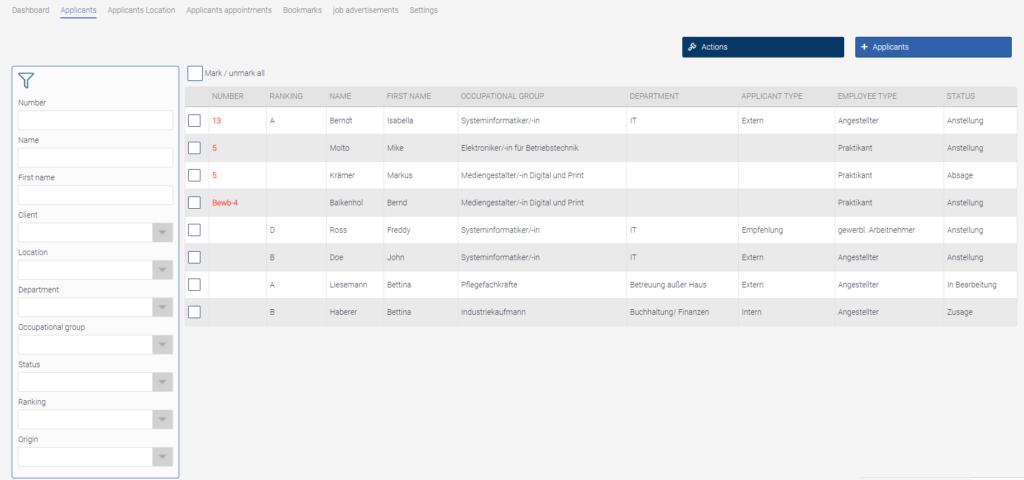
Under this menu item you will find an overview of all applicants in your company. Click on “+ Applicant” to create a new applicant. Clicking on a data record in the table opens the overview of the respective applicant. Via the “Actions” button, messages can be sent in the form of emails. To do this, the recipients must be marked via the checkboxes and then click on Actions->Messages.
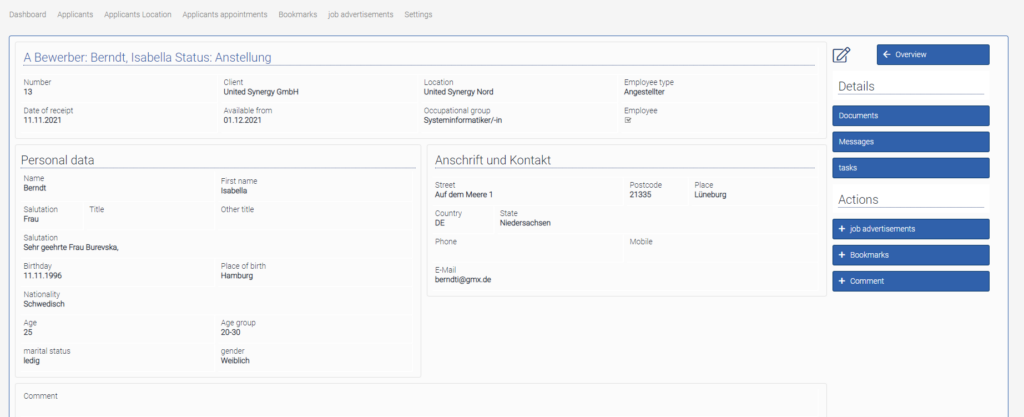
Applicants can be edited via the view page. Via the actions and details, it is possible to carry out various actions for this applicant. These actions are described in more detail below.
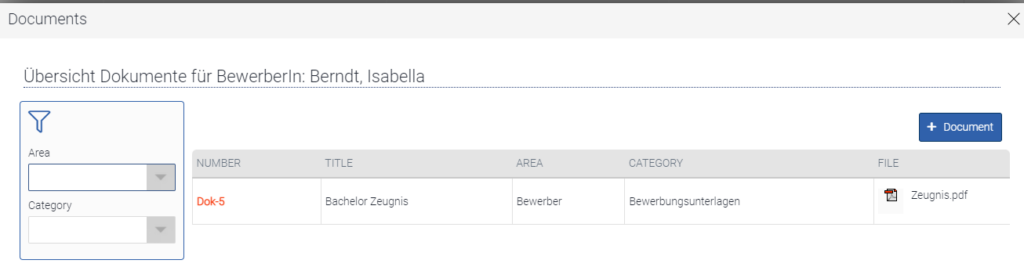
I.Documents
Here, all relevant documents such as e.g. Cover letter and references are uploaded. To attach a document to this applicant click on “+ Document”. A window opens and you can enter all the data there and upload the document.
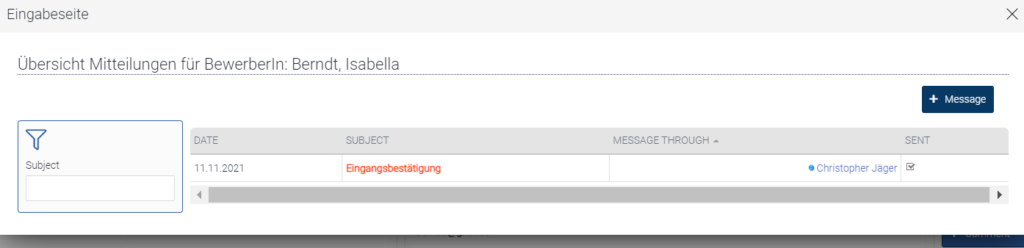
II.Communications
This tooltip provides an overview of all messages, in the form of a letter or e-mail. To send a message to this applicant click on “+ Message”. A window opens and you can enter all the data there.
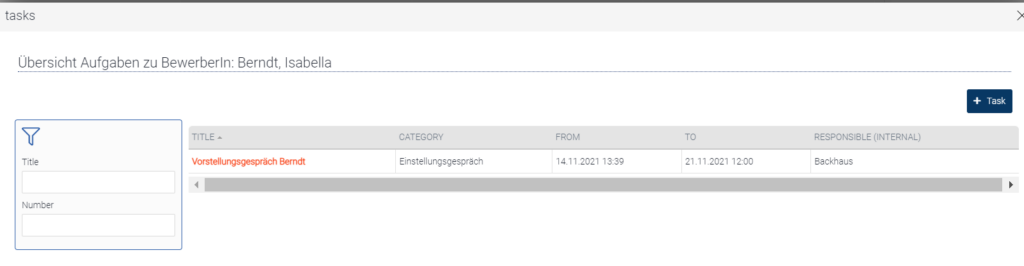
III.Tasks
Tasks relevant to the application, e.g. Conversations, telephone calls or e-mails can be recorded here. To create a task, please click on “+ Task”. A window for creating a task opens.
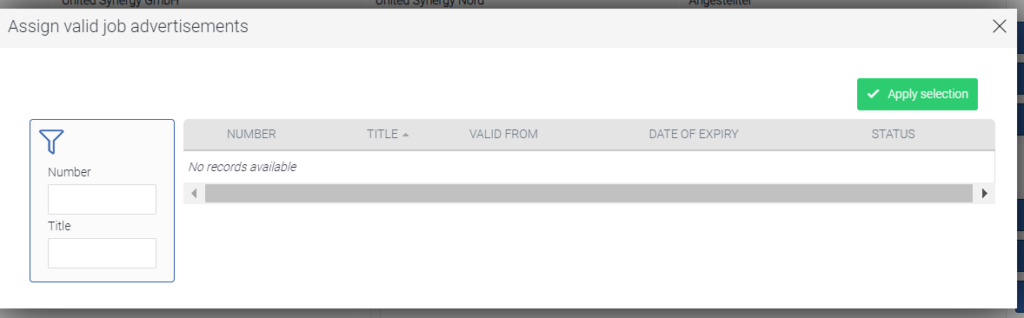
IV.Job advertisements
Clicking on “Job advertisement” opens a window in which various job advertisements that were previously created are displayed and can be selected. Click on Apply selection to assign the selected job advertisements to this applicant.
V.Watch list
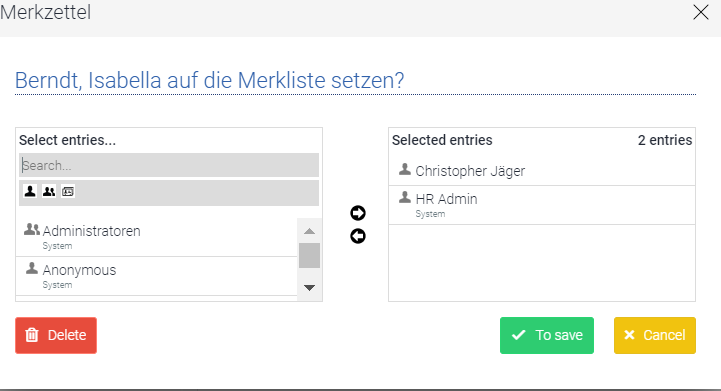
Via “+ watch list” you can send this applicant to other employees in your company if this applicant is interesting for a certain area and employee.
VI.Comment
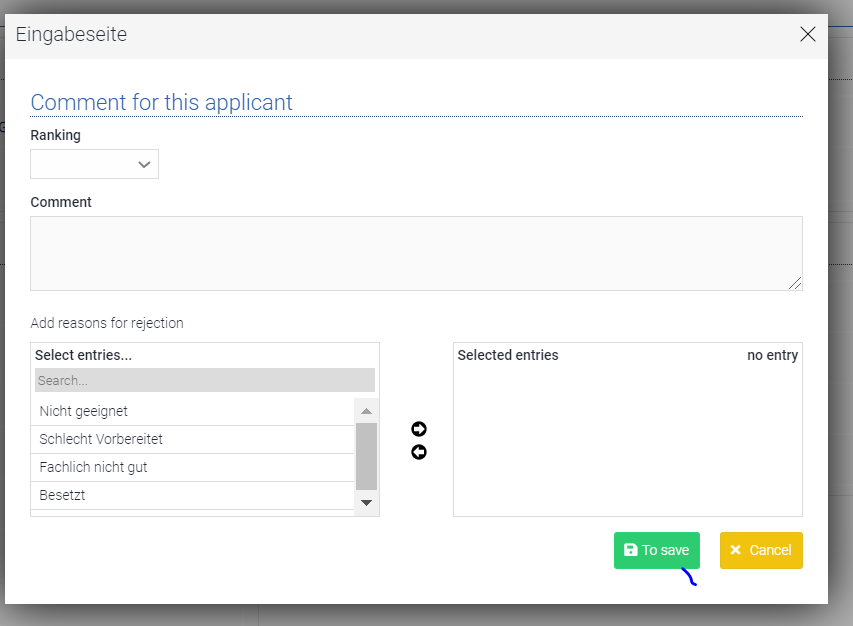
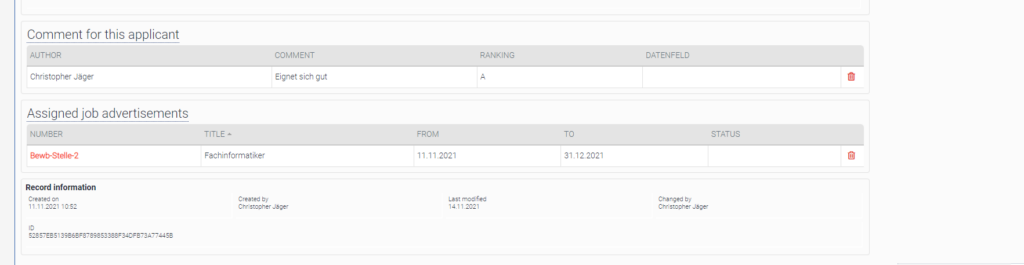
A classification as well as a comment on the applicant could be recorded here. The rating and comments are visible to all staff members who can see this applicant.